
Move WhatsApp to your iPhone without erasing it
Your Android chats, photos and voice notes, added to the iPhone you already use. Step by step, in English or Arabic.
Free and open source. For Macs with Apple silicon, macOS 12 or later.
Wasla was built on a real move: one person, twelve years of WhatsApp, a Motorola and an iPhone that already had everything else on it.
Why Wasla
WhatsApp's own move only works on an empty iPhone
The official Android to iPhone transfer runs during setup, so an iPhone you already use has to be reset first. Wasla adds your chats to the iPhone as it is.
The official way
- Erase the iPhone and set it up again
- Restore photos, apps and settings afterwards
- Start over if anything goes wrong
With Wasla
- Only WhatsApp's data on the iPhone changes
- Photos, apps and settings stay where they are
- Undo puts WhatsApp back as it was
How it works
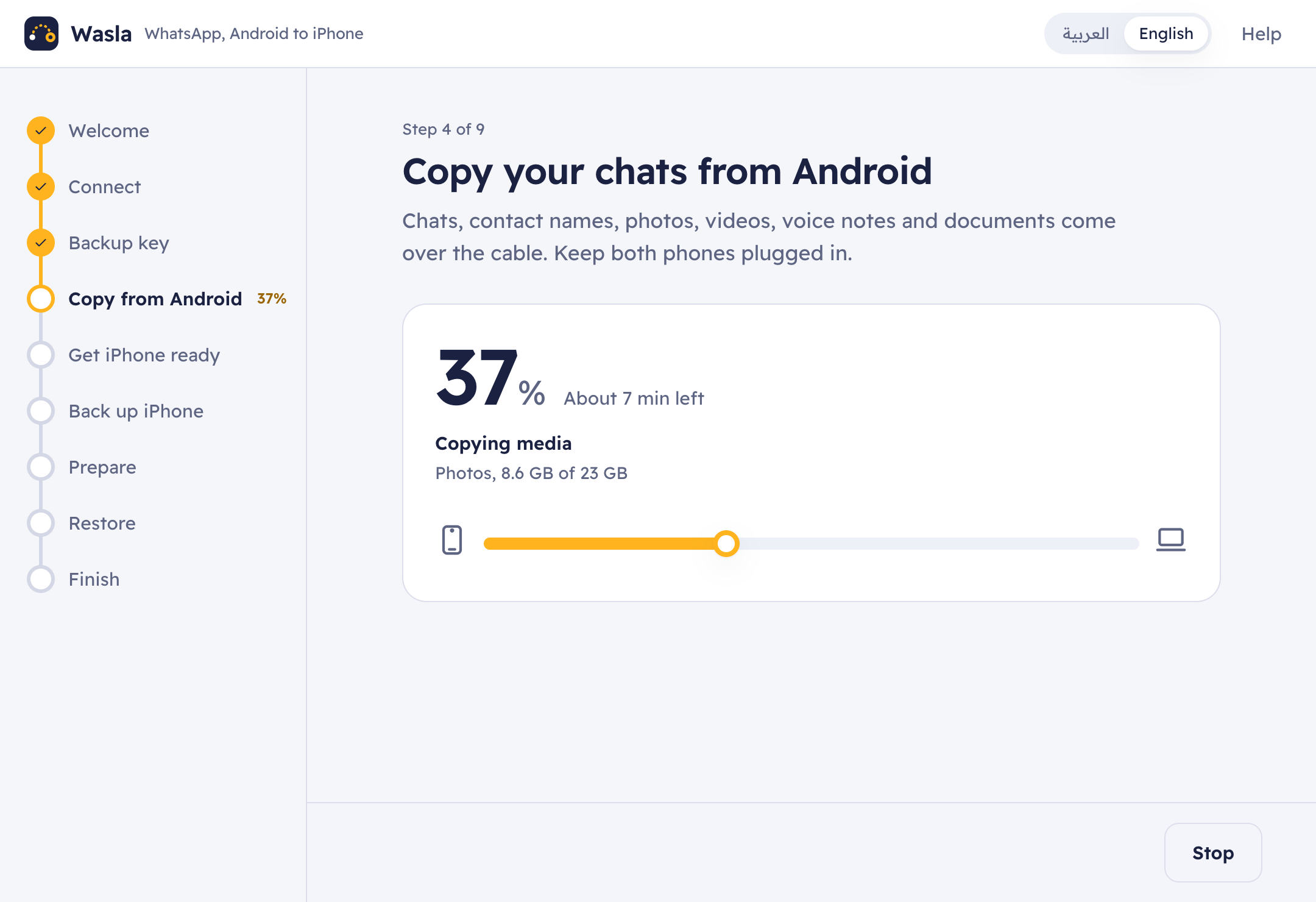
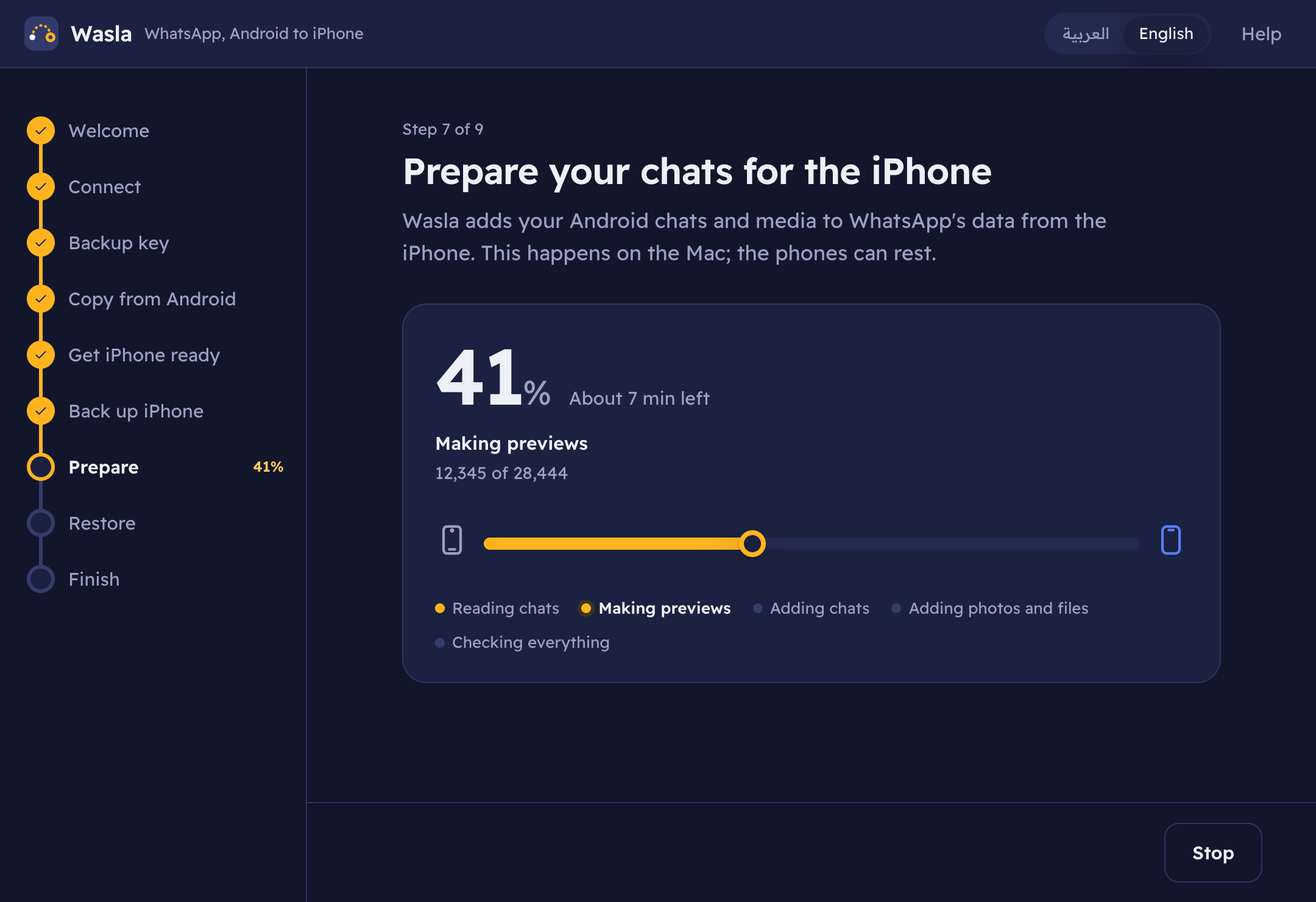
Four stops, with the time left on every one
- 1
Plug in both phones
Wasla checks the cables, the iPhone's trust prompt and the Mac's free space as you go.
- 2
Copy from Android
Type the 64-digit backup key, and your chats, contact names and media come over the cable to the Mac.
- 3
Back up and prepare
A full iPhone backup stays on the Mac as a safety net. Your Android chats are added to WhatsApp's part of it.
- 4
Restore WhatsApp only
Only WhatsApp's data goes back to the iPhone. Open WhatsApp and scroll up through the years.
Made for real phones
It explains the things that actually go wrong
Keys shown right to left
A phone in Arabic lays the key grid out right to left, so a key typed left to right fails. Wasla tries both directions and keeps the one that opens your backup.
The first group sits at the top right.
Cables that only charge
If a phone doesn't show up, Wasla says so and suggests another cable, before you lose an hour.
A greyed-out Find My switch
Away from home, Stolen Device Protection makes you wait an hour. Wasla shows where to start the wait, in the iPhone's own menu names.
Passcode prompts and quiet phones
A big banner appears when the iPhone asks for its passcode, and Wasla tells you why a restore can sit at 0% for a minute.
What moves
Your whole history, in the right chats
Moves to the iPhone
Stays behind
What you need
A Mac, both phones and two good cables
- A Mac with Apple siliconmacOS 12 or later, with free space for an iPhone backup plus about twice your WhatsApp media.
- The Android phoneWhatsApp (not WhatsApp Business), with USB debugging turned on. Wasla shows how.
- The iPhoneWhatsApp installed and set up with the same number. Find My turned off for the move.
- An hour or twoMost of it is copying. Wasla shows the percent and time left the whole way.
Questions
Before you start
Will this erase my iPhone?
No. Only WhatsApp's data is restored. Afterwards the iPhone shows a few setup screens, which is normal after any restore.
Is anything uploaded?
No. Everything moves over the cables and stays on your Mac. Wasla has no account and sends nothing anywhere. The 64-digit key stays in memory and is never saved.
What if something looks wrong afterwards?
Use Undo on the last step. It puts WhatsApp on the iPhone back exactly as it was, from the copy Wasla kept. A full iPhone backup stays on your Mac too.
What about messages that arrive during the move?
Messages that reach the Android phone after its last backup stay on that phone. While the iPhone is in Airplane mode, new messages wait on WhatsApp's servers and arrive after the move.
Is Wasla made by WhatsApp?
No. Wasla is independent, free and open-source software built on wamove. It is not made by or affiliated with WhatsApp, Meta or Apple, and it relies on formats they don't document. Keep your Android phone as it is until you're happy with the result.
Mac says "Wasla.app" Not Opened
Wasla isn't notarized by Apple yet, so macOS asks once. Click Done, open System Settings, then Privacy & Security. Under Security, click Open Anyway next to "Wasla.app was blocked", enter your Mac password and click Open Anyway again.
Bring your chats along
Free and open source. For Macs with Apple silicon, macOS 12 or later.